
Best Way to Embed Acuity Scheduling iFrame
Acuity Scheduling is awesome.
Having a slick & professional appointment booking experience right inside your website, what could be better? This. This is better.
Acuity of course has nice tutorials on how to embed Acuity inside your website, and get advanced in your Acuity Scheduling embed with dynamic links.
But we can do even better.
Let’s look at a few next-level methods for embedding Acuity Scheduling iFrame widgets inside your website.
Let’s go!
Video
Always Embed Acuity Scheduling Inside Your Website!
Before we go through how to take our Acuity Scheduling embeds to the next level, a public service announcement.
❗It’s very important to design our website in a way where every booking always happens inside our website, via Acuity Scheduling iFrame widget embedd. Bookings should never ever happen outside our website, inside acuityscheduling.com.
Why we want bookings inside our website?
Because we want to make money.
To make money we need more Acuity appointments.
To get more Acuity appointments, we want to run ads on Google, Meta and others to bring customers to our website.
To have ads that actually work, we need conversion tracking, to measure which ad clicks led to which conversions and to train the algorithm to show our ads only to the type of people who are likely to book appointments.
To have Acuity Scheduling conversion tracking, every booking must happen within our website, never outside our website or directly in Acuity.
Super super important! Never create links like https://app.acuityscheduling.com/schedule.php…
Always embed Acuity inside your website instead.
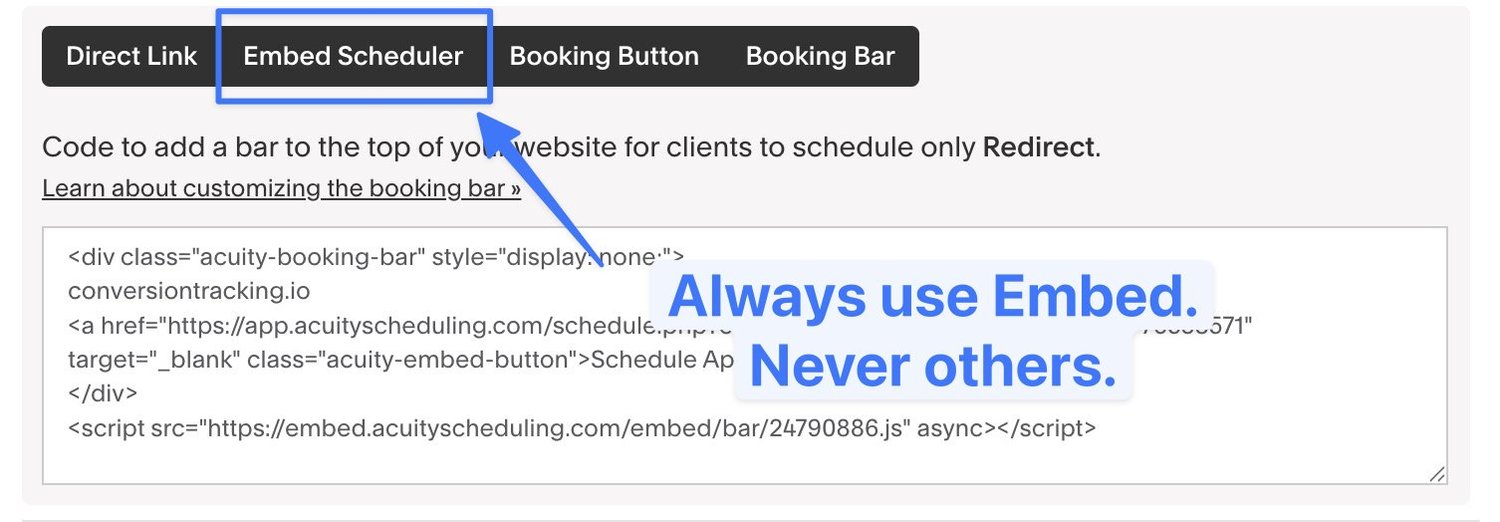
Never use Booking bar, Direct link, or Booking Button
Always use the Embed Scheduler option.
-
Embed Scheduler is the best. It has no downsides.
-
Direct link is bad. You don’t want visitors to leave your website. Tracking breaks, funnels break.
-
Booking Button seems good, but if you try it on a mobile device you realise Booking Button is actually a Direct Link for phones. Terrible! You risk losing 80% of your conversions and having terrible ad performance.
-
Booking bar is basically just a link also. Skip
The Best Way to Embed Acuity Scheduling
1) Code block, not Scheduling Block
First, while I love how easy Squarespace has made embedding Acuity Scheduling widgets inside your website, I always recommend using the Code Block instead of the Scheduling block. This way, we get to do all sorts of cool (and profitable!) additions to our Acuity widget.
2) Only one Acuity embed per page
It’s important to never have more than one Acuity widget in one page. If you add more than one, the dynamic resizing breaks for the widgets, which results in nasty internal scrollbars and a terrible user experience. My clients have seen 70% drops in conversions from this mistake.
3) Anchor scroll ID
Having just one Acuity Scheduling embed per page leads to our next step. You often want to have longer pages, with more content to convince your visitors why they should book. Ideally, you have videos, punchy copywriting, 5-star reviews and pretty images.
When scrolling the page, it’s easy to lose the Acuity Widget (remember, you only have one per page).
So, we wanna make booking easy and instant, the moment our page has convinced the visitor to book. We want to have simple Book Here buttons spread in our page, that scroll the visitor to the slide where our Acuity Scheduling is embedded.
Simple, classy, flexible & effective.
Here’s a simple demo:
<div id="book-appointment">
  <iframe src="https://app.acuityscheduling.com/schedule.php?owner=12345&appointmentType=12345&" width="100%" height="800" frameBorder="0" allow="payment"></iframe>
  <script src="https://embed.acuityscheduling.com/js/embed.js" type="text/javascript"></script>
</div>
And an example button to scroll to the widget.
<!--Demo Scroll Button-->
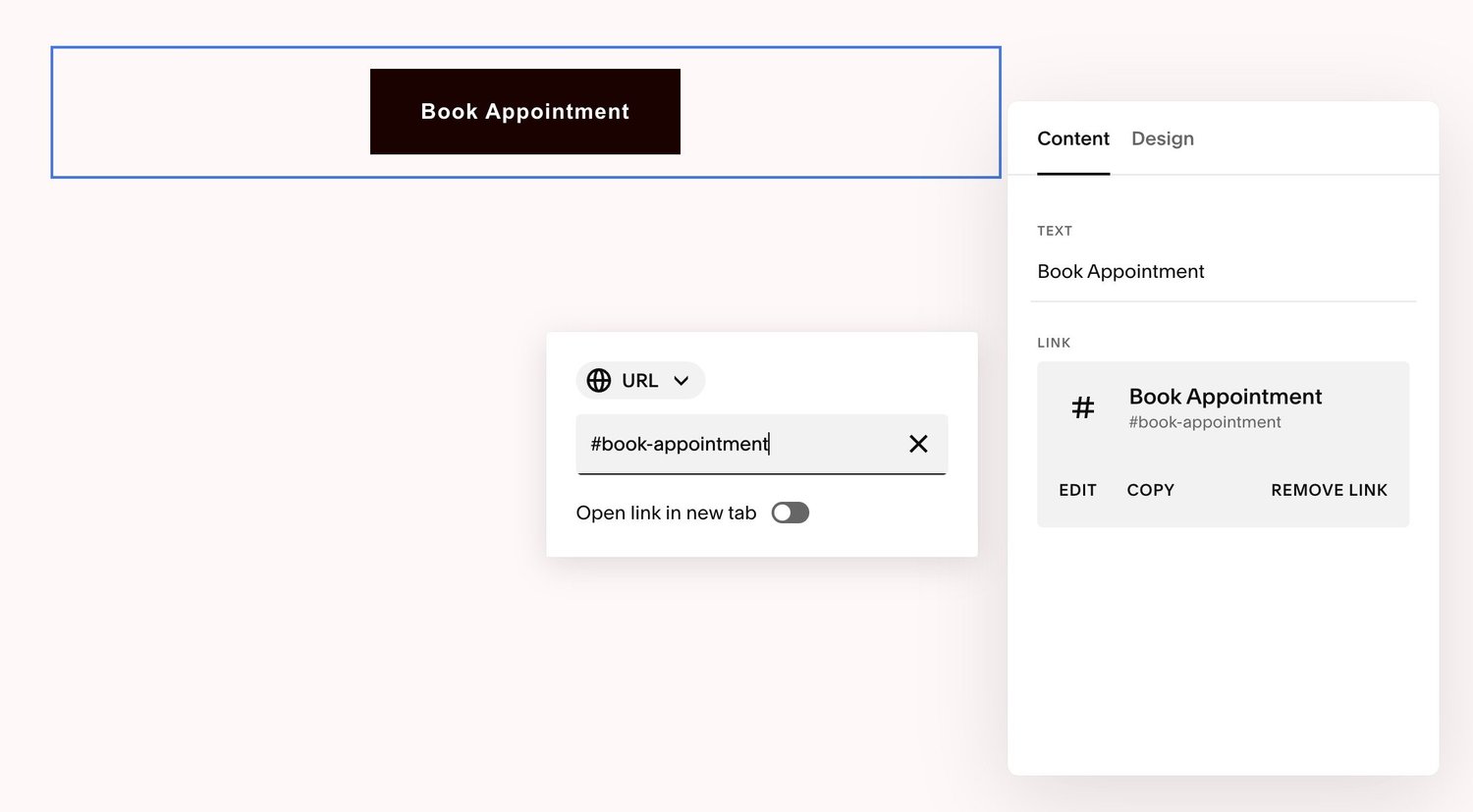
<a href="#book-appointment">Book Appointment</a>
In Squarespace, you can also use buttons or links, just add #book-appointment as the link destination.
4) Smooth Scrolling
Having the option to do buttons and link that scroll the user to our Acuity Scheduling embed is great. But we wanna take it to the next level. We want to make the scrolling smoothly animated.
Here’s a demo:
<div id="book-appointment">

<style> html {scroll-behavior: smooth;}</style>

  <iframe src="https://app.acuityscheduling.com/schedule.php?owner=12345&appointmentType=12345&" width="100%" height="800" frameBorder="0" allow="payment"></iframe>
  <script src="https://embed.acuityscheduling.com/js/embed.js" type="text/javascript"></script>
</div>
You could also just plug this into your Custom CSS. That way it works on all pages.
html {
  scroll-behavior: smooth;
}
5) Full-width Mobile Experience
Next, a tiny but in my opinion very important little tweak to make booking Acuity appointments more pleasant. For my Acuity Scheduling clients, usually +80% of Acuity appointments are done on mobile devices like iPhones.
The new Squarespace 7.1 fluid engine has the option to decide the width of each block we add to our pages. More importantly, we’re able to have a different width on desktop and mobile.
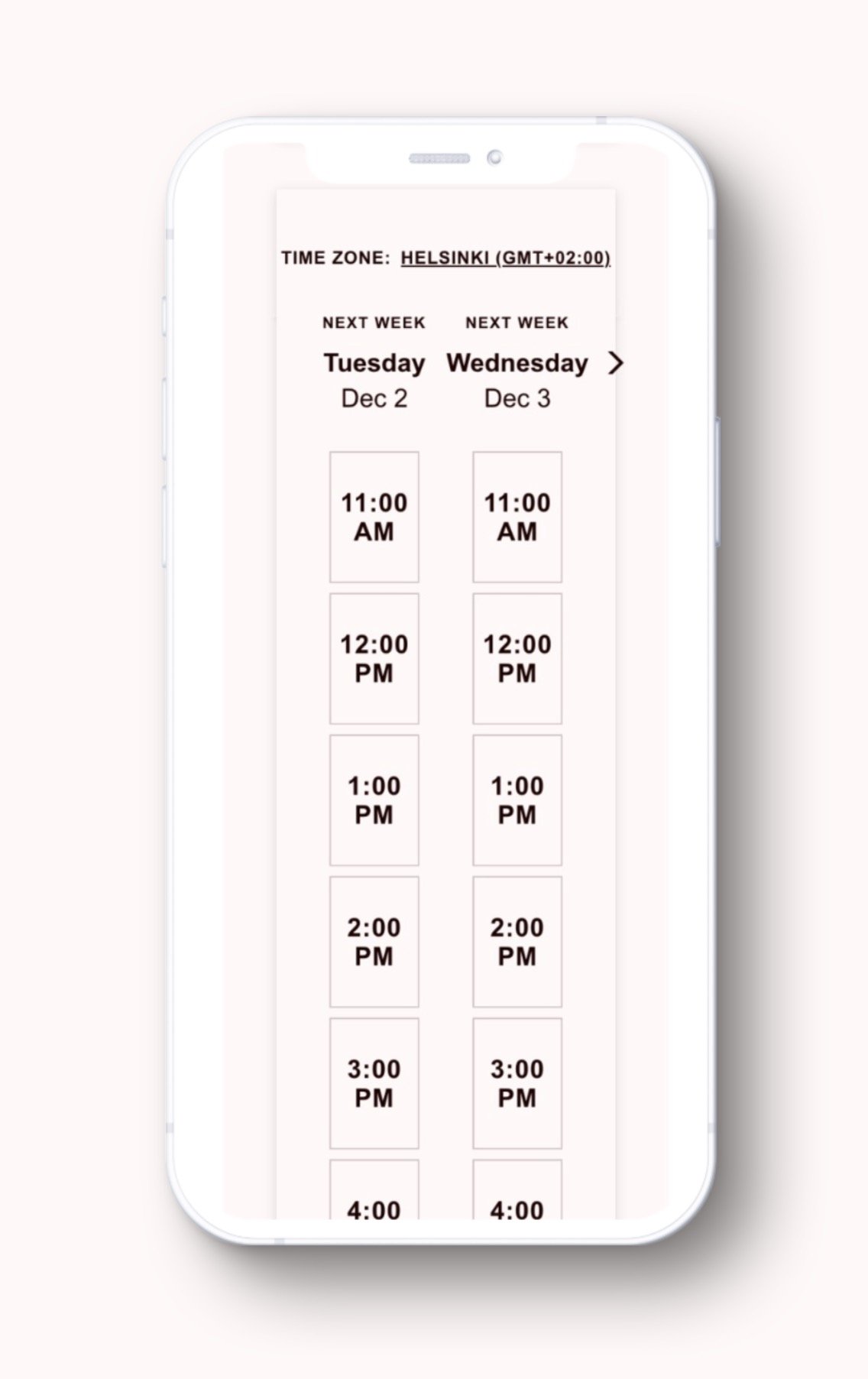
Because Acuity Scheduling iFrame embed already has horizontal margins and paddings, we don’t want to add those twice. If we have margin in our Squarespace website and margins in Acuity Scheduling embed, the widget gets too narrow, layouts make start to break and booking feels claustrophobic
You do not want a terrible looking, narrow booking widget like this:
Instead, you want a beautiful, full-width Acuity embed without any double whitespace on left and right side of the Acuity iFrame embed:
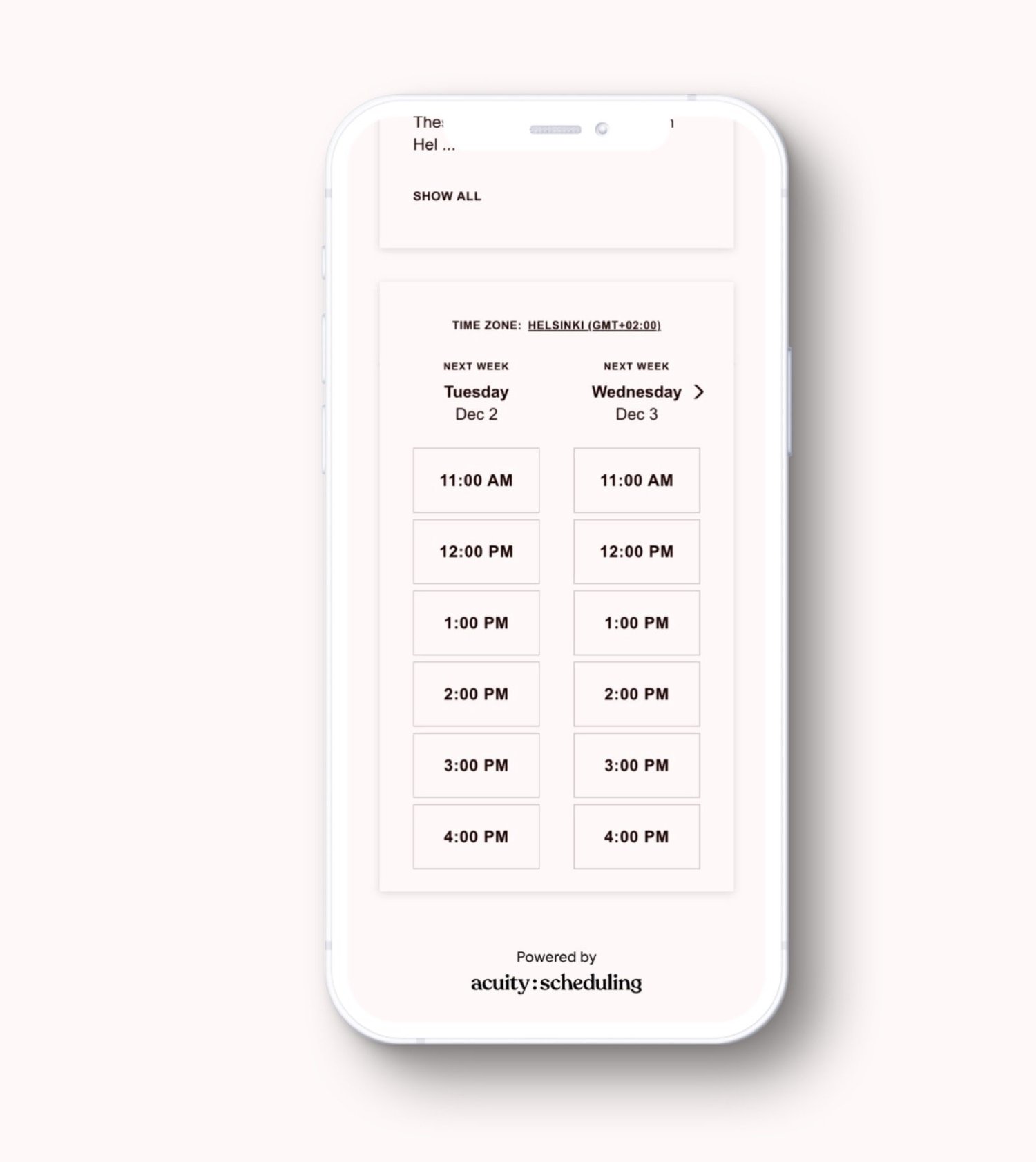
So make sure to stretch your Acuity iFrame embed from left edge all the way to the right edge, on the mobile view. In Squarespace this is easy. With WordPress or Shopify, it may be a bit trickier but I still think it’s worth it.
5) Booking Location
We always want to see where each booking happened. You may have the same Acuity iFrame embed on multiple pages, like a landing page, contact page, services page etc.
We want to “tag” each widget with a little parameter to see in which URL and which page our Acuity appointment took place.
Even more importantly, we want to know if the Acuity appointment happened in side our website, like example.com/book, or directly in Acuity Scheduling, like https://app.acuityscheduling.com/schedule.php. You remember, we never want bookings outside our website. So if we see those, something is wrong and must be fixed!
Here’s how to implement this
-
Head over to Acuity Scheduling -> Intake Form Questions -> New Custom Form
-
Check Internal Use Only, and apply to all appointments
-
Create a textbox, name it something like conversion_location_hardcoded
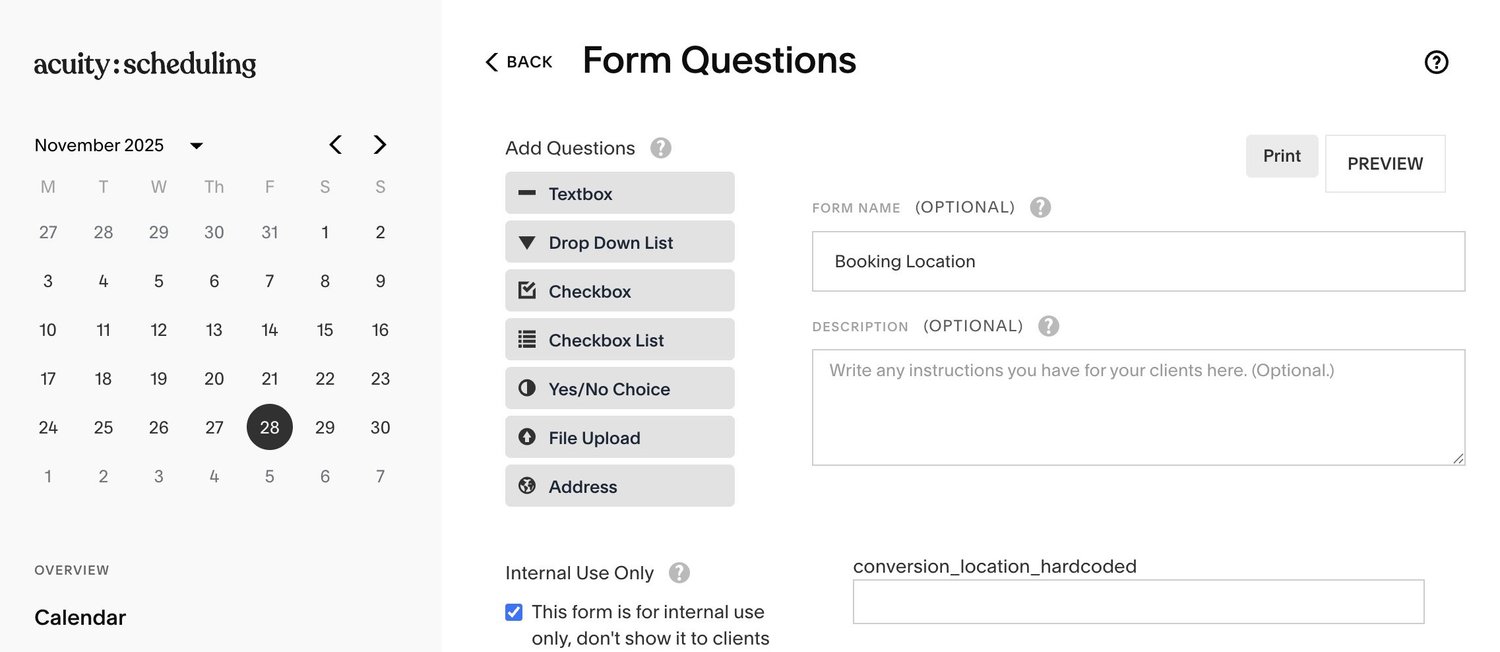
- Right click, the box, click Inspect, and get the field ID.
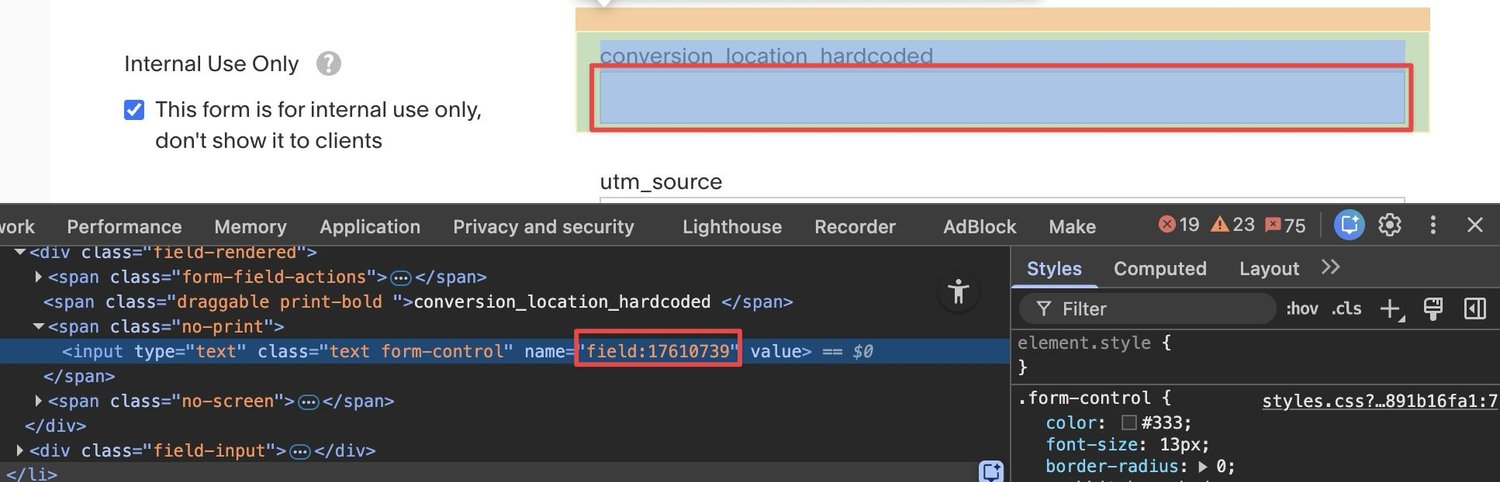
Then, add the field ID and the current page path to your Acuity embed src, for example:
&field:17610739=/contact-usIf we are on a contact page. Or
&field:17610739=/servicesIf we are on the services page.
Our end result looks like this:
<div id="book-appointment">

<style> html {scroll-behavior: smooth;}</style>

  <iframe src="https://app.acuityscheduling.com/schedule.php?owner=12345&appointmentType=12345&field:17610739=/contact-us" width="100%" height="800" frameBorder="0" allow="payment"></iframe>
  <script src="https://embed.acuityscheduling.com/js/embed.js" type="text/javascript"></script>
</div>
Nice!
7) Extra points: conversiontracking.io Acuity Analytics App
If you are ambitious, you want to get more appointments, and know where your users came from, I’ve built a custom Acuity Scheduling app that tracks where bookings came from. It does conversion tracking, analytics, Google Ads, Meta Pixel, Meta Conversions API, Google Analytics, Automatic reports, and works like an automatic “where did you hear about us”.
Many Acuity users have a question to ask visitors how they found you. But this is for suckers. We want a custom app, that lets us know what was the previous website where they came from, google.com, reddit.com etc. We want to know what was the first page they visited, if it was our homepage, or one of our blog pages. We want to know which pages they visited and for how long. We want to know which device they used, desktop or mobile.
And most importantly, we want to know which ad platform, ad campaign, ad placement, or Google Ads keyword brought them to our website.
For every Acuity appointment, we want to see exactly how did this visitor found us (an example of a photography studio based in Toronto
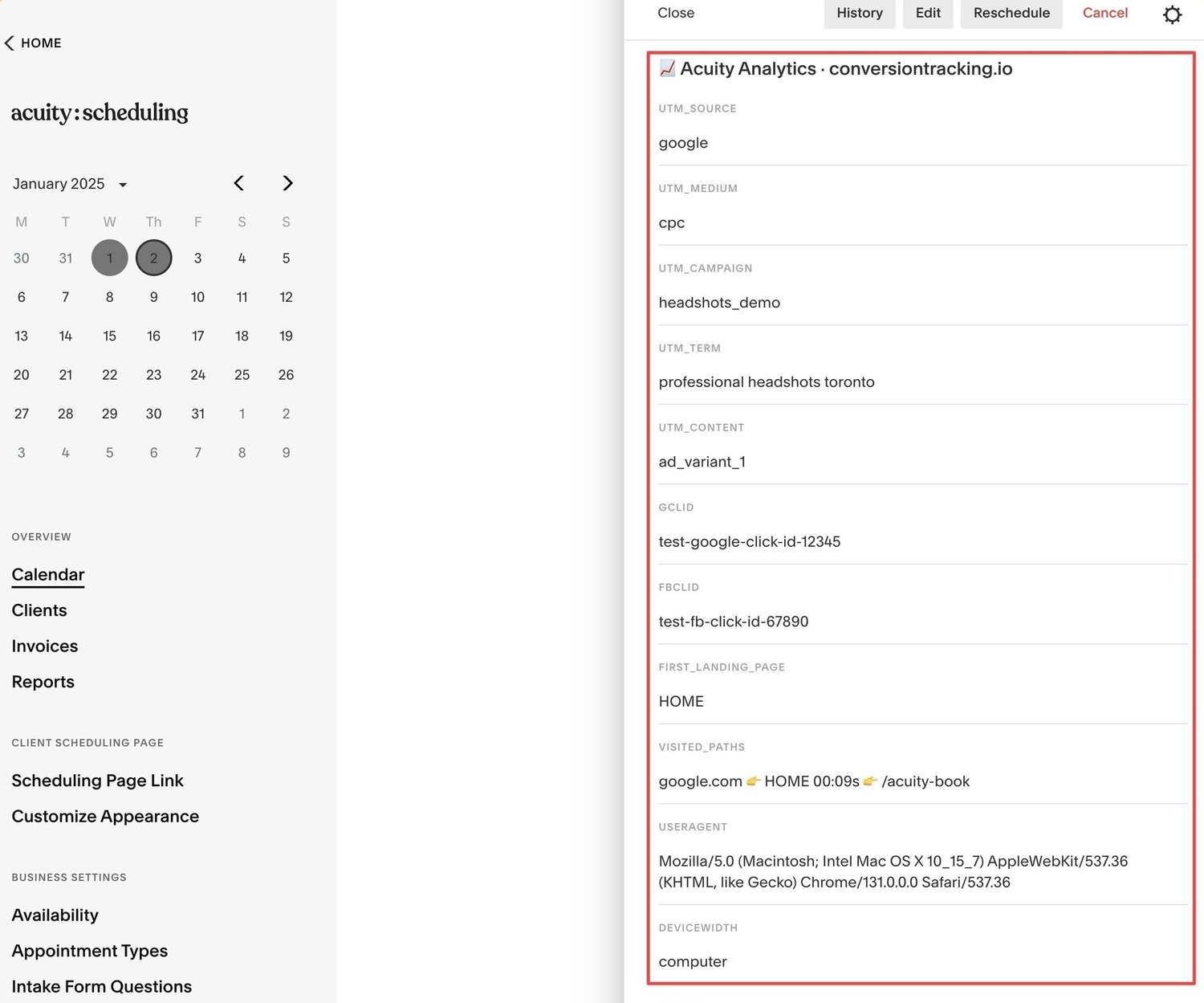
In the example above, we can see this visitor came from our Google Ads campaigns, and was searching for “professional headshots toronto” keyword. We can’t run a business or do professional marketing, without knowing this in detail.
Otherwise, it’s like we’d be playing golf with a blindfold on.
Like What You See..?
If you use Acuity Scheduling and you want more appointments, I can help you with that. I do conversion tracking, attribution, and can hook you up with specialists who get you more appointments than you can handle.